
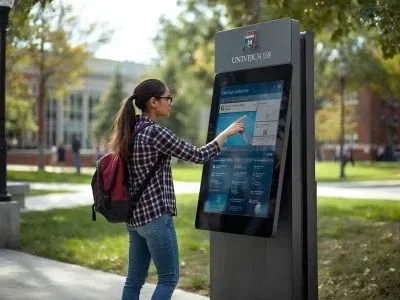
Norvision has spent more than 20 years designing digital signage and wayfinding solutions for complex environments. One lesson is consistent: the best kiosk is not necessarily the biggest or most feature-rich. It is the one that helps people find their destination, fits the space, stays accessible, and can be maintained without creating extra work for your team.
For facility managers and IT administrators, choosing among freestanding kiosks, wall-mounted displays, and interactive directories means considering the whole system, not just the screen. You also need to plan for accessibility, durability, data integrations, support, and long-term cost.
Start with the visitor’s task
Before comparing hardware, define what people need to do at each location. Are visitors looking for a department in a hospital, a lecture hall on a university campus, a meeting room in an office, or a terminal in an airport?
Write down the primary tasks, then choose equipment and software that make those tasks easy.
- Find a destination: Search by name, department, category, or room number.
- Understand the route: Show a clear map and step-by-step directions.
- Check current information: Display room availability, event details, closures, or service updates.
- Continue on a phone: Offer an optional QR code or similar way to carry directions forward.
- Get help accessibly: Make sure information is usable by people with different mobility, vision, hearing, and language needs.
Keep it simple. If people need several screens of instructions just to find a building or department, revisit the user experience before adding more features.

Compare the three main kiosk types
| Kiosk type | Best suited to | Advantages | Trade-offs |
|---|---|---|---|
| Freestanding | Entrances, lobbies, and open concourses | Easy to spot; can be positioned near decision points; supports a dedicated interactive experience | Uses floor space; needs secure installation and careful placement |
| Wall-mounted | Corridors, elevator lobbies, and areas with limited floor space | Keeps floor clear; works well in a fixed location; can provide directions or other updates | Placement is less flexible; mounting height and screen angle need careful planning |
| Interactive directory | Large facilities with many destinations, tenants, or changing information | Lets visitors search and explore destinations; can combine maps with live or frequently updated data | Depends on well-maintained content, reliable software, and integration planning |
An interactive directory describes what the kiosk does, not where it is mounted. It can be installed in a freestanding or wall-mounted unit. Choose the physical format based on the site; choose the interactive experience based on what visitors need.
Choose freestanding when visibility matters
A freestanding kiosk can make sense when visitors need help as soon as they enter a building or campus. It is easy to spot in a lobby and can be placed near reception, an entrance, or a junction where people choose their route.
Before selecting one, walk the site and confirm that the proposed location:
- Does not obstruct circulation, queues, doors, or emergency routes.
- Has suitable power and network access.
- Allows people to approach and use the screen comfortably.
- Can be cleaned and serviced without disrupting nearby activity.
- Is suitable for anchoring the unit and protecting its cables.
Freestanding units may suit hospitals, university campuses, and airport concourses, but an oversized kiosk in a narrow lobby can become an obstacle instead of a navigation aid.
Choose wall-mounted when floor space is limited
Wall-mounted displays are useful in corridors and elevator lobbies where a floor-standing unit would get in the way. They can provide a quick “you are here” map, directions to nearby destinations, or a directory visitors can search.
The key decision is screen height and reach. A fixed installation is harder to adjust after the fact, so review the location with facilities and accessibility stakeholders before ordering. Also check the wall structure, power and data pathways, viewing angles, glare, and whether the screen protrudes into a circulation path.
A wall-mounted display can be non-interactive if visitors mainly need a static map or rotating information. If people need to search or choose destinations, make sure the interface is designed for touch, or provide a clear alternative.

Decide whether the screen should be touch or non-touch
Touch is useful when people need to search a large directory, choose among destinations, or explore a map. A non-touch display may be more appropriate for a simple overview, a “you are here” map, or directions that can be scanned at a glance.
Ask your team:
- How many choices must visitors navigate? A long directory is often easier to use with search and category filters.
- Will people interact in a busy location? Make buttons and map controls easy to understand and use without lengthy instructions.
- What happens if someone cannot use the touchscreen? Consider accessible alternatives such as clear on-screen instructions, audio where appropriate, and mobile handoff. A QR code can supplement the kiosk, but should not be the only way to get directions.
- What screen size works at the intended viewing distance? Test the actual map, labels, and directions in the location. Bigger is not automatically better if the interface becomes cluttered or the screen is hard to reach.
Treat accessibility as a design requirement
Accessibility depends on more than a kiosk’s height. The screen location, approach space, on-screen controls, text, contrast, and route options all affect whether someone can use the system.
The U.S. Department of Justice’s 2010 ADA Standards for Accessible Design include requirements for accessible routes, clear floor space, and reach ranges in applicable settings. The specific requirements depend on your facility and installation. Review the design with your accessibility or building-code specialist rather than relying on a generic vendor claim.
For the digital interface, check that:
- Text is legible, with adequate contrast and a way to enlarge it where appropriate.
- Buttons and search fields are easy to identify and operate.
- Maps are not the sole way to understand directions; provide written or step-by-step guidance too.
- Routes can account for accessible paths, elevators, ramps, and temporary closures.
- The interface supports the language needs of your visitors.
- Your vendor can explain its accessibility approach and provide relevant documentation.
Digital wayfinding should work alongside permanent signs and accessible routes, not replace them.
Check durability for your actual environment
A kiosk in a quiet corporate lobby has different demands from one in a hospital entrance or airport concourse. Ask vendors to specify commercial-use suitability, operating expectations, enclosure materials, screen protection, warranty coverage, and how components can be replaced.
Also consider daily operations:
- Can staff clean the screen and enclosure using your facility’s approved products?
- Is the unit protected from accidental impact and tampering?
- Does it need to withstand outdoor conditions, direct sunlight, or temperature changes?
- Can IT monitor whether the display is online and showing the correct content?
- What is the plan if the touchscreen, player, or network connection fails?
Don't get caught up in a long specification list before checking whether the equipment is appropriate for the location and support model.
Evaluate the directory software and integrations
The kiosk is only as useful as the information it presents. Find out who will own directory updates and how they will be made. A good content management system should let authorized staff update destinations, maps, and messages without rebuilding the entire experience.
Ask vendors to demonstrate:
- Search, categories, maps, and step-by-step directions.
- Role-based access for IT, facilities, marketing, and other content owners.
- Scheduling, review, and publishing workflows.
- Multi-site management if you have several buildings or campuses.
- Offline behavior if the network connection is lost.
- Monitoring and alerts when a kiosk or content feed is unavailable.
- Analytics that help you understand common searches and improve the directory.
If room availability or event information matters, define the source of truth and how often information must update. For example, Microsoft 365 and Google Calendar provide APIs for calendar data; see the Microsoft Graph event resource and the Google Calendar API events reference. Confirm whether the proposed wayfinding platform can integrate with your room-booking system, what data it needs, who approves access, and how errors or stale data will be handled. An integration should be demonstrated and scoped, not assumed.
Norvision’s digital wayfinding solutions illustrate the value of tying searchable destinations to detailed maps and routes that can be updated for maintenance, closures, and emergencies.

Compare total cost of ownership, not screen prices
The purchase quote is only one part of your budget. For a fair comparison, ask every vendor to itemize the same categories across the period you expect to operate the system:
- Display, touch technology, enclosure, and media player.
- Design, mapping, content setup, and data integration.
- Installation, power, network work, and project management.
- Software licensing, hosting, and future updates.
- Staff training and ongoing content administration.
- Warranty, service visits, remote support, and monitoring.
- Replacement parts, equipment refresh, and end-of-life removal.
A lower initial quote may leave you responsible for integration, troubleshooting, or content maintenance. Compare service coverage, response times, monitoring responsibilities, and what happens when a component fails. Norvision describes its experience and ongoing support approach on its About Us page. Make sure any service commitments are documented in your proposal.
Use this decision framework
Choose freestanding if the kiosk needs to stand out at an entrance or lobby and you have enough space to place it safely.
Choose wall-mounted if floor space is constrained, the location is fixed, and the screen can be installed at an appropriate viewing and interaction height.
Choose an interactive directory, in either form factor, if visitors need to search many destinations, follow mapped routes, or use frequently updated information.
Then check that the software can manage your data, the physical installation suits the environment, accessibility is reviewed, and support is included in the lifecycle plan. Keep it simple: prioritize the visitor’s task, the facility’s realities, and a system your team can maintain.
Norvision has more than 20 years of experience designing digital signage and wayfinding for complex spaces. To discuss the right approach for your hospital, campus, workplace, or transportation hub, schedule a free demo or call 480-447-4260.